
Showing posts with label android hack. Show all posts
Top Android Hacks You Can Try Without Rooting Your Phone..!
Many people think you need to go through the daunting process of rooting your Android device to get the most out of it. While rooting does open up a world of new possibilities, there are plenty of cool Android hacks that don't actually require it. Here are five of our favorite hacks you can do on your Android device without rooting it.
Lock your phone, remotely
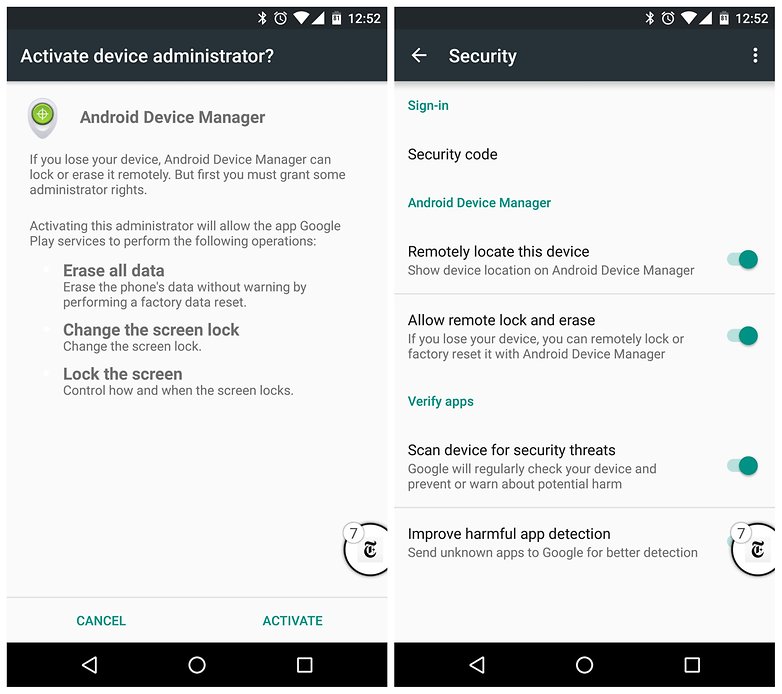
There's nothing worse than losing your phone, apart from losing your phone and knowing that someone might have access to your data. But you know what's great? Feeling like James Bond as your remotely stop someone poking their noses into that data.
By using the Android Device Manager, you can take back control of your device if you ever lose it. You can even delete all of its data, if you wish to go that far.

Bypass your security (in a secure area)
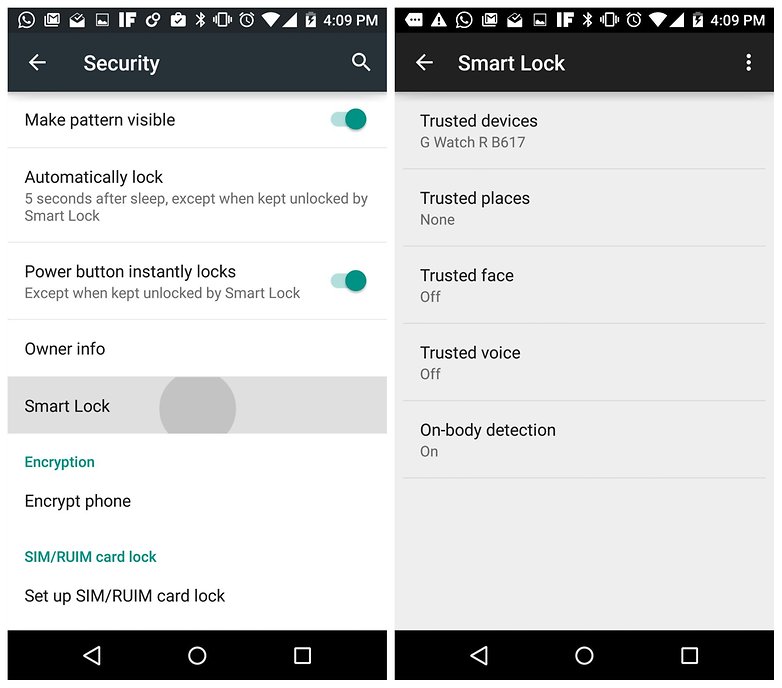
Setting up a trusted location means that your device won't require a security code when you use it in that place. Although there is a risk in doing this in public places – because you are making it easier to get into your phone – it’s a cool hack to use at home.
The way it works varies according to your device, but it involves going to your security settings and setting up a secure unlock method, such as a PIN code (if you haven't already).
Once this has been done, go to Smart Lock, enter your pin number and then hit Trusted places. Add a trusted location and you will no longer need to enter a PIN code to unlock your phone while you're in that place.
Record voice calls
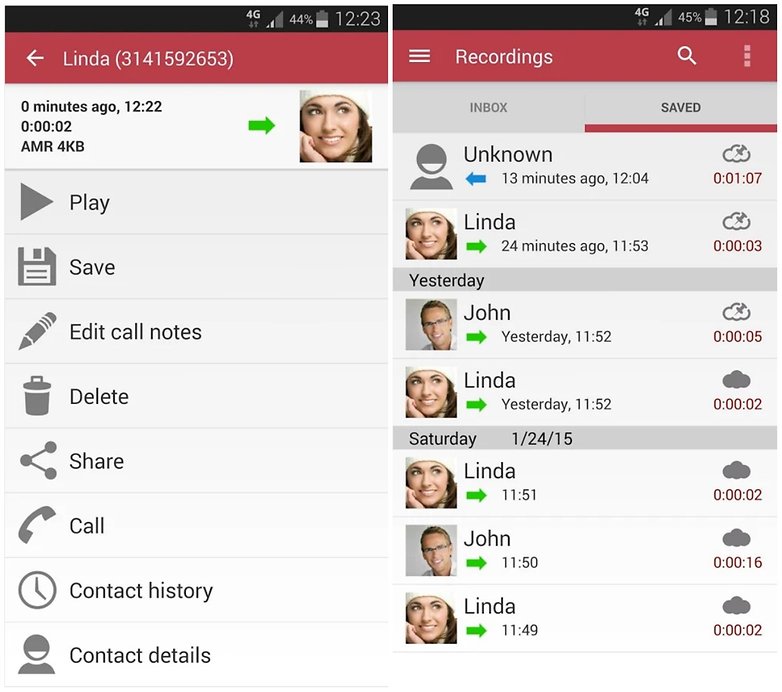
Do you fantasize about working for the NSA or MI-5 and being tasked with recording phone conversations without the other person knowing? If so, shame on you, but if you do want to record conversations for any reason, you may as well do it properly by using the right app. Many Android call recorder apps require you to root your phone, but there are several that don't.
Automatic Call Recorder is a free, easy-to-use app, which lets you set up voice recording on your device. Your manufacturer may have blocked call recording on your phone, but Automatic Call Recorder has several options to work around these blocks.
Install Linux on your Android device
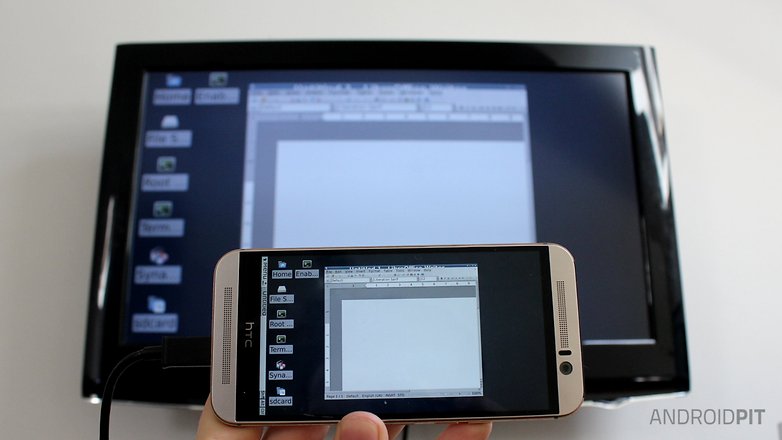
Throwing a full working desktop operating system, such as the Linux distribution Debian, onto your Android phone may sound as though it would require a high level of hacking skill, but it's actually very simple. There's a Debian app, Debian noroot, in the Play Store, which you can download for free, then open from your Android home screen like any other app.
Once you've opened it, you can download and install programs games for Debian just like you would any other version of Linux. Click below for our guide on how to install and set up Linux for you Android device.
Use LED flash as a heart-rate monitor
OK, so no amount of rooting would give you a heart-rate monitor if your device didn't already have one built in, but this still feels like a great little hack. The technology behind heart-rate monitors on Android devices is effectively just a light that tracks color changes under your skin to monitor the amount of blood passing through.
With the right software, your LED flash can do this job too. One app that we think does the job pretty well is Instant Heart Rate. Find out more at the link below.

Turn your navigation buttons into app shortcuts
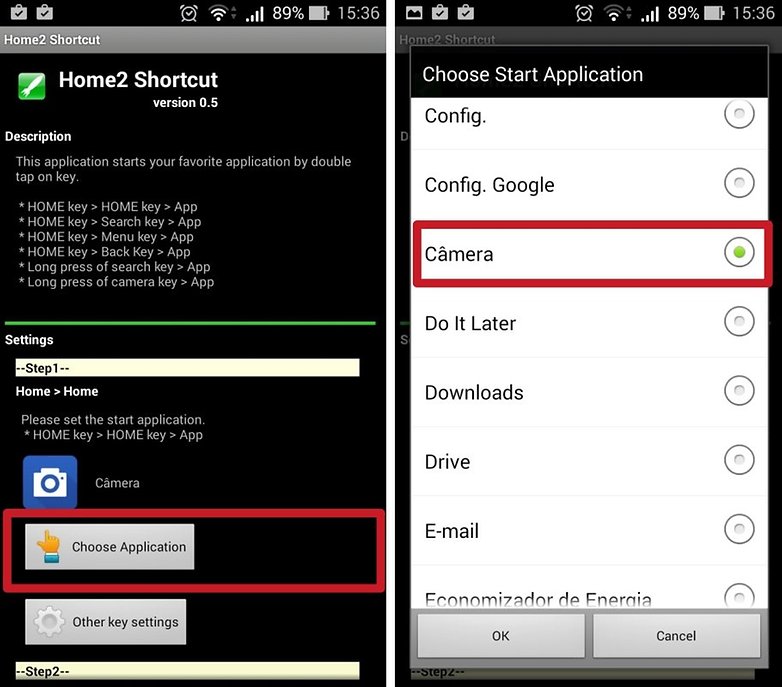
Using the old but ever-useful app Home2 Shortcut, you can assign various shortcuts to your navigation buttons, letting you access your favorite apps instantly from any screen. For example, I've assigned File Manager (which is extremely useful, but not too sexy on my homescreen) to a double-tap of the home button, while I can open my camera from any screen by tapping the home button then the back-navigation keys.
Click below for our guide on how to use this app to instantly launch your phone camera – or any app you like, for that matter.
Bonus tip: Completely change how your phone looks and acts
This isn't exactly a hack, but you can install a custom launcher to alter almost every aspect of your device, without requiring root permissions. You will still have access to the same apps and features, but the way in which you access them could be entirely different.
From fancy 3D effects to inventive themes and icons, the right launcher will make you fall in love with your smartphone all over again. Check out our list of best Android launchers for more.
Hack/Bypass Android Pattern/Pin/Password/Face/Fingerprint [Tutorial]

Android is one of the most popular SmartPhone Operating System. As of Now there are over a billion android users. Every android user must be familiar with Pattern/PIN lock/Face Recognition,a security feature which ensures authorized access to their devices. But sometimes the users forget the pattern or they try the wrong pattern more than the permitted number of tries allowed,getting locked out. In this guide I have collected almost all possible methods to break/bypass a pattern/PIN/Face protected android device.
Disclaimer; Do at your risk. I am not responsible for any damages caused and hacking someone's phone is a crime.
Follow the below given methods one by one.
Method 1 ( Only If Custom Recovery like Cwm, Twrp, Xrec,Etc... is Installed:)
Procedure:
1. Download this zip Pattern Password Disable on to your sdcard (using your PC, as you cant get into your phone)
2. Insert the sdcard into your phone
3. Reboot into recovery mode
4. Flash the zip
5. Reboot
6. Done!
Note : After Restarting if it still asks any pattern/PIN,just try some random pattern/PIN
Method 2 (For All Devices With Custom Recovery Installed )
Procedure (Using Aroma File Manager)
1.Download and Copy Aroma File manager.zip to your memory card.
2. Open your recovery (press volume Down + Power button or it can be different according to the phones. Generally the phones who have press able button on the middle they have to press all three buttons. Google for you pattern)
3. There will be an option in recovery called “mount”. Go in that option and then mount all the cache and everything what is there.
4. Then select “update” and select “apply update from SD/external” and select aroma file manger.zip file that you downloaded.
5. After Flashing or updating, the aroma file manger will open. Use volume keys for up/down and power button 2 select like you use to get into recovery.
6. In aroma File manager , Go to menu , which is located in bottom strip and then select Settings.
7. Go to bottom n select “mount all partition in startup ” then exit from aroma file manger.
8. Now after exit , re-update that aroma file again and it will open again.
9. Go to data >> and then System.
Then find ‘gesture.key’ (for pattern lock) and ’password.key’ (for password lock) then long touch on gesture.key or password.key and sum option will be prompted , choose delete and delete that file and restart.
Note : After Restarting if it still asks any pattern/PIN,just try some random pattern/PIN
Method 3 (No Custom Recoveries Installed)
Requirements.
- PC(Linux or Windows+Cygwin Installed)
- USB Cable and
- adb(Android Debug Bridge) installed.
How to install adb(Linux)
Open Terminal Type the below command and hit enter.
sudo apt-get install android-tools-adb
Follow the instructions until everything is installed.
How to install adb(Windows)
Download the .exe and run it. For download & Instrutions refer the guide here
Procedure
- Connect the phone to the computer via USB(phone should be turned on).
- Open a terminal window(Linux) or cmd(windows).
- Type the below commands one by one,pressing enter.
adb devices
adb shell
cd data/system
su
rm *.key
- That's all. Reboot the device.
Note : After Restarting if it still asks any pattern/PIN,just try some random pattern/PIN
Method 4 (All Devices Via Adb - SQL Command)
- Open terminal(Linux)/cmd(Windows) and type the following commands,each at a time,followed by enter.
adb shell
cd /data/data/com.android.providers.settings/databases
sqlite3 settings.db
update system set value=0 where name='lock_pattern_autolock';
update system set value=0 where name='lockscreen.lockedoutpermanently';
.quit
- Done. Reboot the device.
Note : After Restarting if it still asks any pattern/PIN,just try some random pattern/PIN
Method 5 (All Devices Via Adb - File Removal )
Procedure:
- Open terminal(Linux)/cmd(Windows) and type the following command.
adb shell rm /data/system/gesture.keyThat's it. You should be able to use the device without password/Pattern lock now. If it asks for password?pattern at startup just give any random pattern/PIN
Method 6 (All Devices With USB Debugging Enabled )
Procedure: (Primary Steps)
- Download & Extract Bypass Security Hackprogram.
- Open SQLite Database Browser 2.0.exe in SQLite Database Browser.
- Navigate to By-pass security Hacks folder and open Terminal/Cmd there.
- Run the file pull settings.db.cmd this will pull out the setting file out of your phone.
- Drag settings.db and drop to SQLite Database Browser 2.0.exe program.
- Navigate to Browse data tab, At table there, click to list down the selection & delete secure
Instruction To Remove Pattern Lock:
- Continuing the above procedures,find the record named lock_pattern_autolock, and delete it.
- Close & save database
- Run push settings.db.cmd and reboot your phone
Instruction To Remove PIN Lock:
- From the list, find lockscreen.password_type, double-click it & change it's value to 65536, and apply changes. (Note: If that file is not there create it)
- Next find lock_pattern_autolock, and delete record, If doesn't exist, Ignore
- Close & save database
- Run push settings.db.cmd and reboot your phone
Instruction To Remove Password Lock:
- Find lockscreen.password_salt, Delete Record
- Next find lockscreen.password_type, Delete Record
- Close & save database
- Run push settings.db.cmd and reboot your phone
As always give any random password/PIN/Pattern if it asks in the first boot.
Method 7 (Taking Precaution Before Lock Accident) :
As the title says,this method will act as a precaution, before you get locked up,while you still have access to the device.
- SMS Bypass [Root Required]- Download & Install It On Your Device.
- This App Allows You To Remotely Bypass Your Phone's Screen Lock By Sending A SMS.
- It Removes Your Gesture Pattern Or Password After Receiving A Preset Keyword Along With A Secret Code Via SMS.
- SMS Bypass App Requires Root.
Procedure:
2.Change the secret code to your preferred choice. The default password is : 1234
3.To reset your screen lock, send the following message from another phone:
secret_code resetExample:
1234 reset
Note 1 : There is a space between your secret code and reset. Also the secret code is case sensitive.
Note 2 : There is an option available to change the preset keyword. Default is : reset - Your phone will restart and your lock screen will be reset.
If None Of The Above Methods Work,Do Factory Reset/Full Wipe The Device
Credits: XDA Forums


